

How to Download and Install PandaVPN on Android: A Step-by-Step Guide
 Sharon
  2026.10.17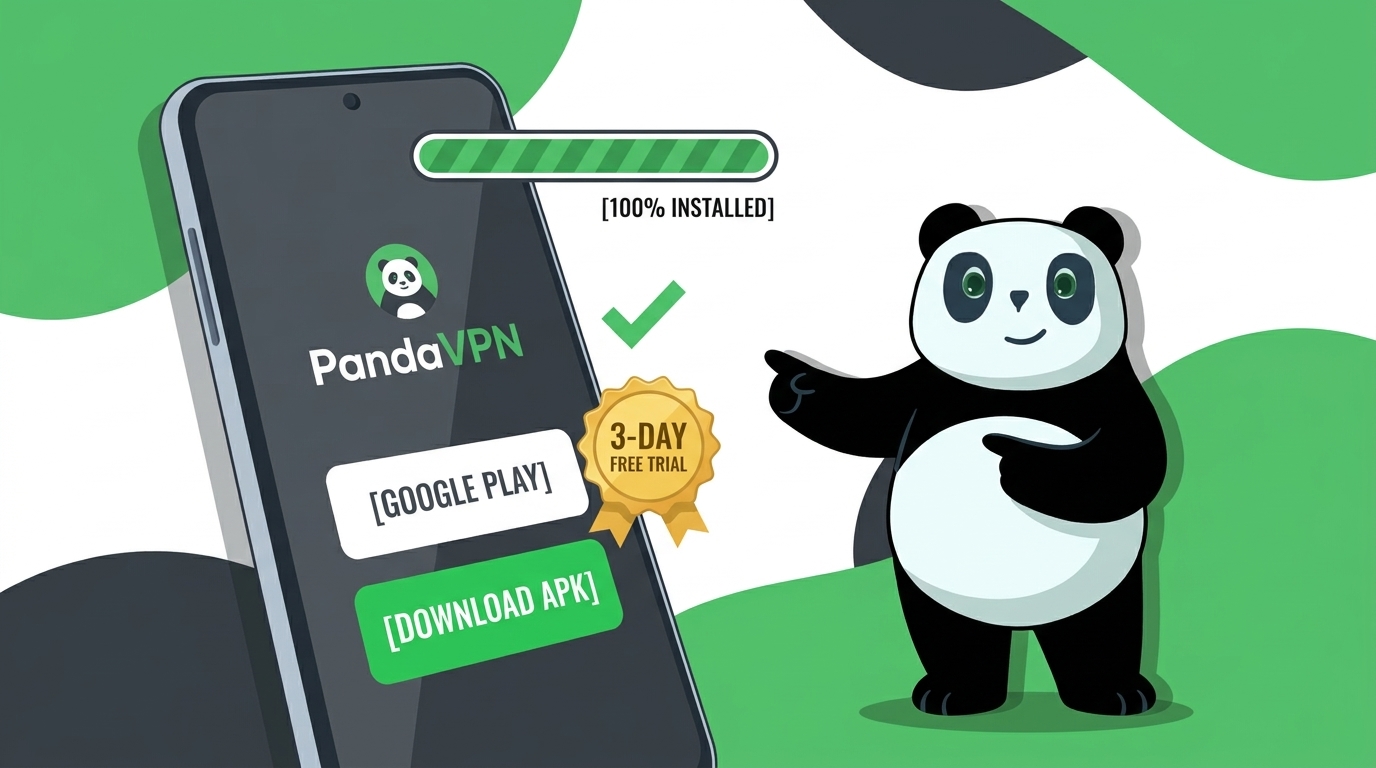
Looking for a simple way to protect your Android device while browsing, streaming, or connecting to public Wi-Fi? PandaVPN for Android offers an easy-to-use VPN experience, helping you encrypt your internet traffic and connect to servers in different locations.
You can install PandaVPN through Google Play or download the official APK from the PandaVPN website. This guide explains both options, walks you through the APK installation process, and shows you how to connect to a VPN server on your Android device.

Why Choose PandaVPN for Android?
PandaVPN is designed to make VPN protection accessible to Android users, whether you want to enhance your online privacy, secure your connection on public Wi-Fi, or access services while traveling.
With an intuitive interface and a global server network, PandaVPN makes it easy to choose a server location and establish a VPN connection. It supports Android 5.0 and later, according to the official download page.
New users can also try PandaVPN with a 3-day free trial. The trial is available to all users installing the app for the first time, without regional or account-based restrictions.
Android Requirements Before Installation
Before downloading PandaVPN, make sure your device meets these basic requirements:
- Supported Android versions: Android 5.0 and later, including Android 5 through Android 16.
- Internet connection: An active Wi-Fi or mobile data connection.
- Available storage: Enough free space to download and install the application.
- Official download source: Use Google Play or the official PandaVPN website to avoid modified or potentially unsafe APK files.
Method 1: Install PandaVPN from Google Play
Installing PandaVPN through Google Play is the simplest option for most Android users. Google Play manages the installation process, so you generally don’t need to install an APK manually.
Step 1: Open the official Google Play page
Visit the official PandaVPN listing:
Download PandaVPN from Google Play
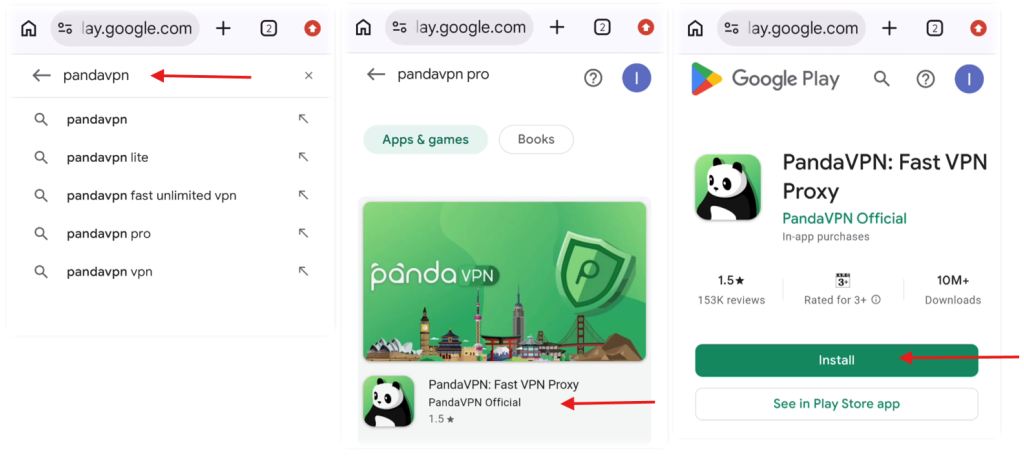
Step 2: Install the app
Tap Install and wait for the download and installation to finish.
Step 3: Open PandaVPN
Once installation is complete, tap Open to launch the app. Follow the on-screen instructions to get started.
Step 4: Start your free trial
If you are installing PandaVPN for the first time, you can access the 3-day free trial. The offer is available regardless of your region or account status.
Step 5: Connect to a server
Choose a server location or use the app’s connection option to establish your VPN connection. When Android asks for permission to set up a VPN connection, review the prompt and approve it if you want to proceed.
Method 2: Download and Install PandaVPN APK
If you prefer to install the app directly or Google Play is unavailable on your device, you can download the APK from the official PandaVPN website.
Step 1: Visit the official PandaVPN download page
Open the official Android download page:
Download PandaVPN APK for Android
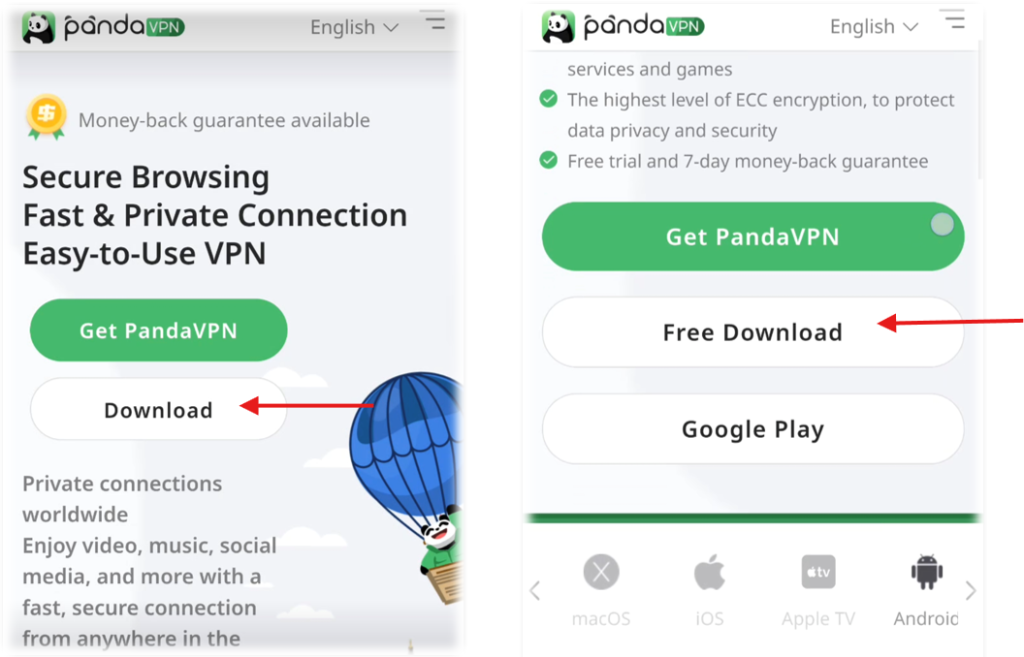
Step 2: Download the APK file
Tap the Android APK download button on the official page. Wait until the file finishes downloading before continuing.
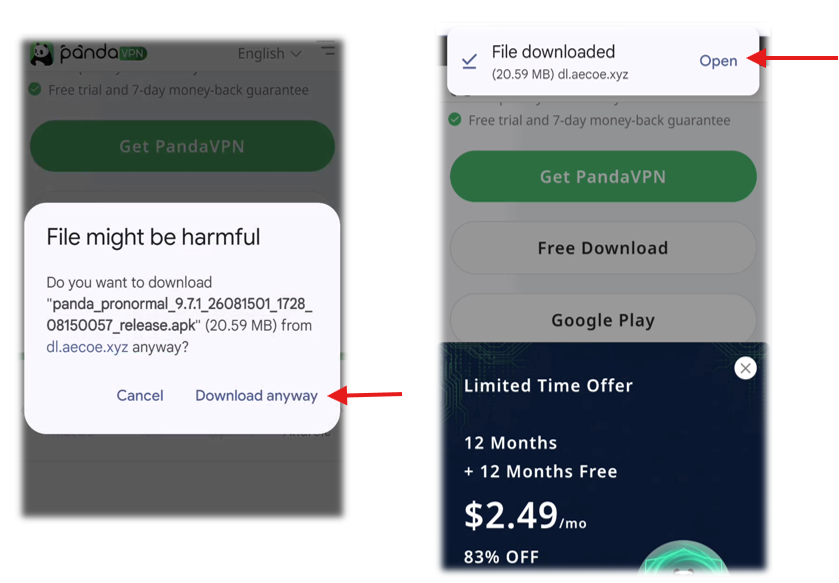
Step 3: Open the downloaded APK
Open your device’s Downloads folder or tap the completed download notification. Select the PandaVPN APK file to begin installation.
Step 5: Install PandaVPN
When the installation screen appears, tap Install and wait for the process to finish.
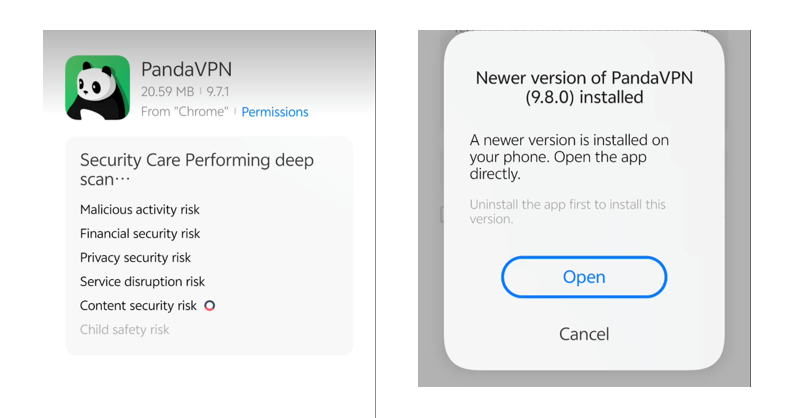
Step 6: Open the app
Once installation is complete, tap Open to launch PandaVPN. Follow the on-screen instructions to begin using the app.
Note: Android menus and permission labels may vary by device manufacturer and operating system version. If you cannot find a particular setting, check your device’s installation instructions.
How to Connect to PandaVPN on Android
After installing PandaVPN, follow these steps to establish a connection.
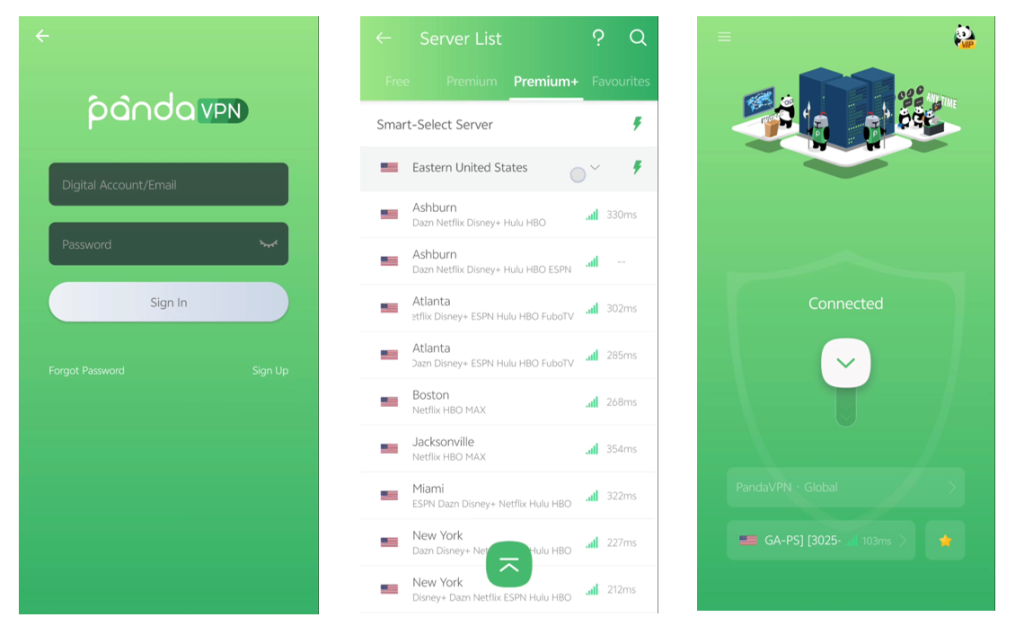
Step 1: Launch PandaVPN
Open the app from your home screen or app drawer.
Step 2: Access your account or free trial
Follow the app’s on-screen instructions. First-time installers can access the 3-day free trial without regional or account-based restrictions.
Step 3: Choose a server location
Select a server location based on your needs. For example, you may choose a nearby server for general browsing or a specific location when you need an IP address associated with that region.
Step 4: Connect to the VPN
Tap the connection button and approve Android’s VPN connection request if prompted. Wait for the app to indicate that the connection has been established.
Step 5: Browse with the VPN connected
Once connected, your internet traffic is routed through the VPN tunnel. For the best experience, choose a suitable server and check your connection if you notice unexpected slowdowns.
Troubleshooting Common Installation Problems
If PandaVPN does not install or connect successfully, try these basic troubleshooting steps.
The APK will not install. Check that the download completed successfully, that your device has enough free storage, and that the APK came from the official PandaVPN website. If Android blocks the installation, review the permission settings for the browser or file manager you used.
Google Play cannot install the app. Check your internet connection and available storage, then try again. You can also visit the official PandaVPN website to check the available Android download option.
The VPN will not connect. Confirm that your internet connection is working, try another server location, and restart the app. If the problem persists, consult PandaVPN’s official support resources.
The app behaves unexpectedly. Check whether an app update is available and restart your device if necessary. Avoid installing modified APK files from unofficial websites.
Frequently Asked Questions
Which Android versions does PandaVPN support?
The official PandaVPN Android download page lists support for Android 5.0 and later, covering Android versions 5 through 16. Actual compatibility may also depend on your device and system configuration.
Is it better to install PandaVPN from Google Play or an APK?
Google Play is the easiest option for most users because it handles installation directly. The official APK is an alternative when you prefer direct installation or cannot use Google Play. Always use an official source.
Does PandaVPN offer a free trial to first-time users?
Yes. All users installing PandaVPN for the first time are eligible for the 3-day free trial, with no regional or account-based restrictions.
Do I need to root my Android phone to use PandaVPN?
No. PandaVPN can be installed on compatible Android devices without rooting the phone. You may need to approve Android’s standard VPN connection permission when you connect.
Is it safe to download the PandaVPN APK?
For a safer installation, download the APK directly from the official PandaVPN website. Avoid unofficial download sites and modified APK packages, which may contain unwanted or harmful software.
Get PandaVPN for Android
Installing PandaVPN on Android is straightforward, whether you choose Google Play or the official APK. Select the method that works best for your device, follow the installation steps, and connect to a suitable server when you’re ready.
Download PandaVPN from the official source and explore the 3-day free trial available to first-time installers.
- Google Play: Install PandaVPN
- Official APK: Download PandaVPN for Android
- Official website: PandaVPN

Related Posts


Featured Posts